Bidding Fever works in your phone's browser. You can add it to your home screen so it opens like an app.
Add it to your home screen
- iPhone (Safari): open biddingfever.com, tap the Share button, then Add to Home Screen.
- Android (Chrome): open biddingfever.com, tap the menu (three dots), then Add to Home screen or Install app.
Turn on email alerts
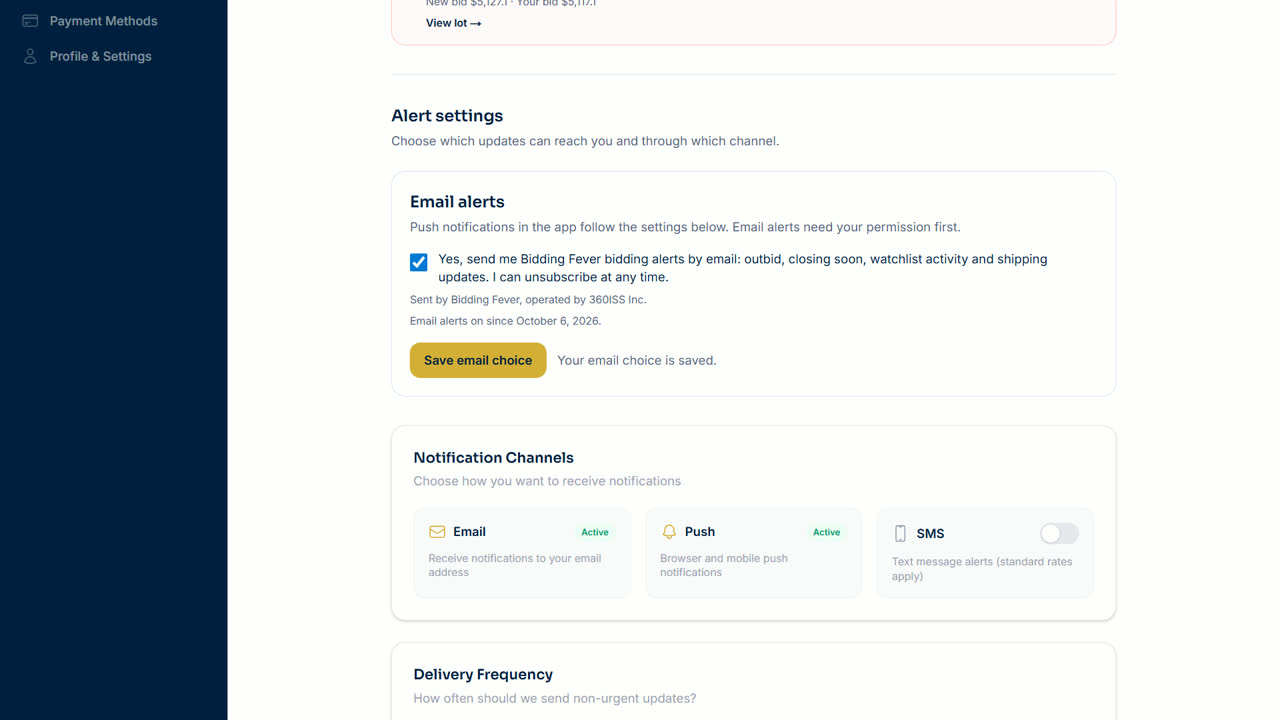
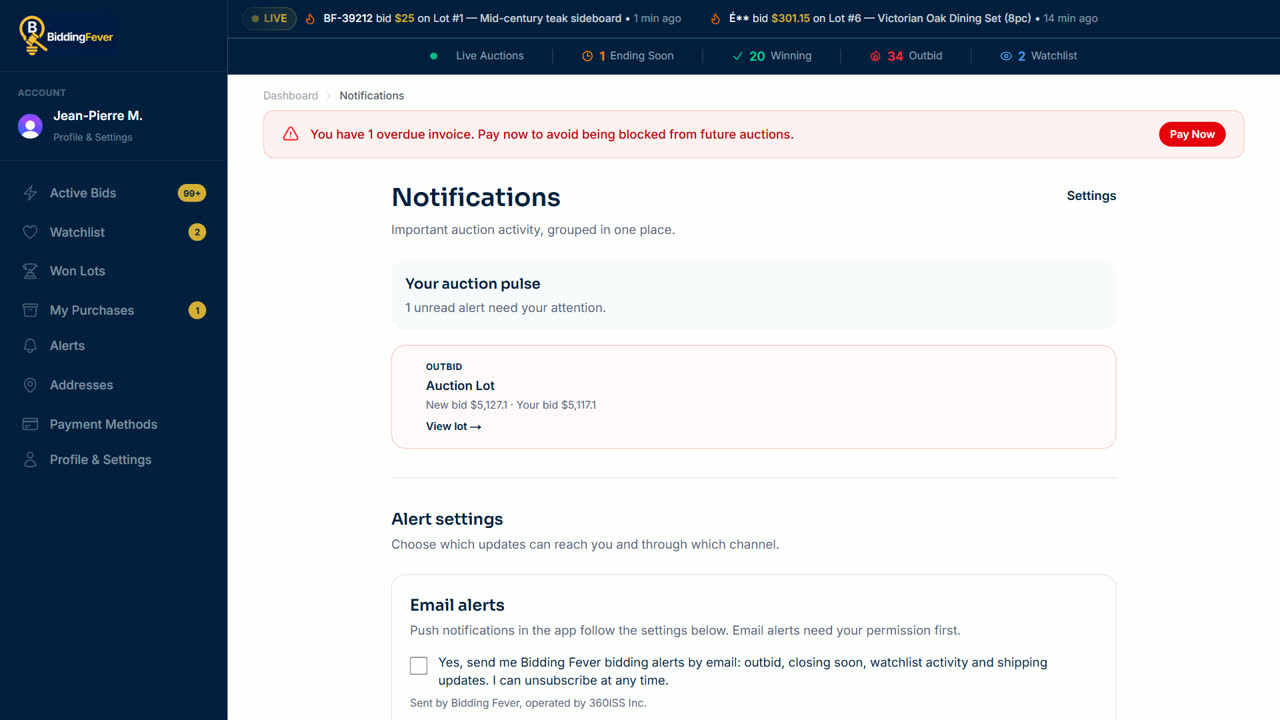
- Under Email alerts, tick the box to receive bidding alerts by email, then select Save email choice. The page confirms your choice and the date.
Choose which alerts you get
- Under Alert settings, each alert, such as Outbid Alerts, Won Item, Invoice Ready and Auction Ending, has switches for Email, Push and In-app.
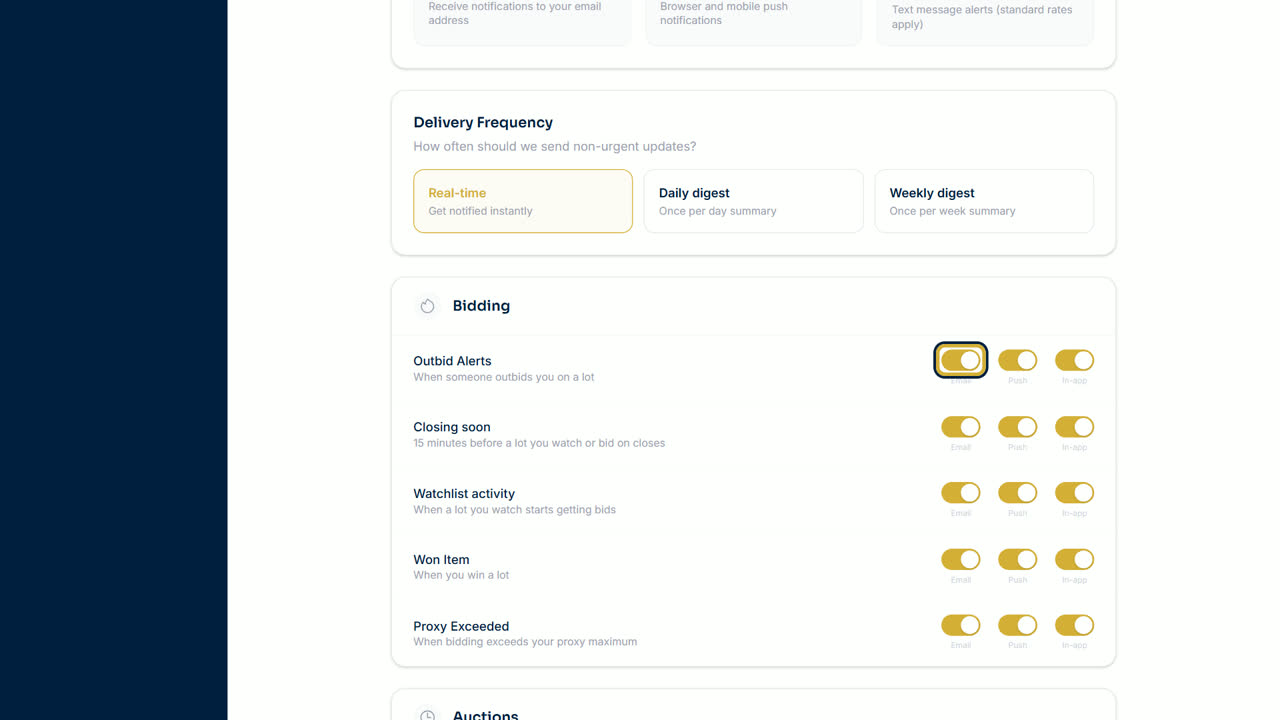
- Turn each switch on or off, then select Save Changes. The page shows Preferences saved.
- Push alerts go to the Bidding Fever phone app. In-app alerts appear on the Notifications page.
Stop emails
Every alert email has an unsubscribe link at the bottom. One click stops that kind of email, and you can turn it back on from Notifications.
Tip: keep Outbid Alerts on. It is the alert that gives you a chance to bid again before a lot closes.
Updated October 8, 2026