Lots are imported into an auction you have already created. Create the auction first (it stays a draft), then import. See Create an auction.
Your spreadsheet
- Use a
.csvor.xlsxfile. The import page has a Download template link with three sample rows. - Required columns: Title and Starting Bid (more than 0).
- Optional columns: Lot Number, Title FR, Description, Description FR, Reserve Price, Category, Shipping, Condition Grade and Condition Notes. Without a lot number, the row number is used.
- If Title FR is empty, the English title is used.
Import the lots
- Open the auction in the seller portal and select Import Lots in its menu, under Cataloguing.
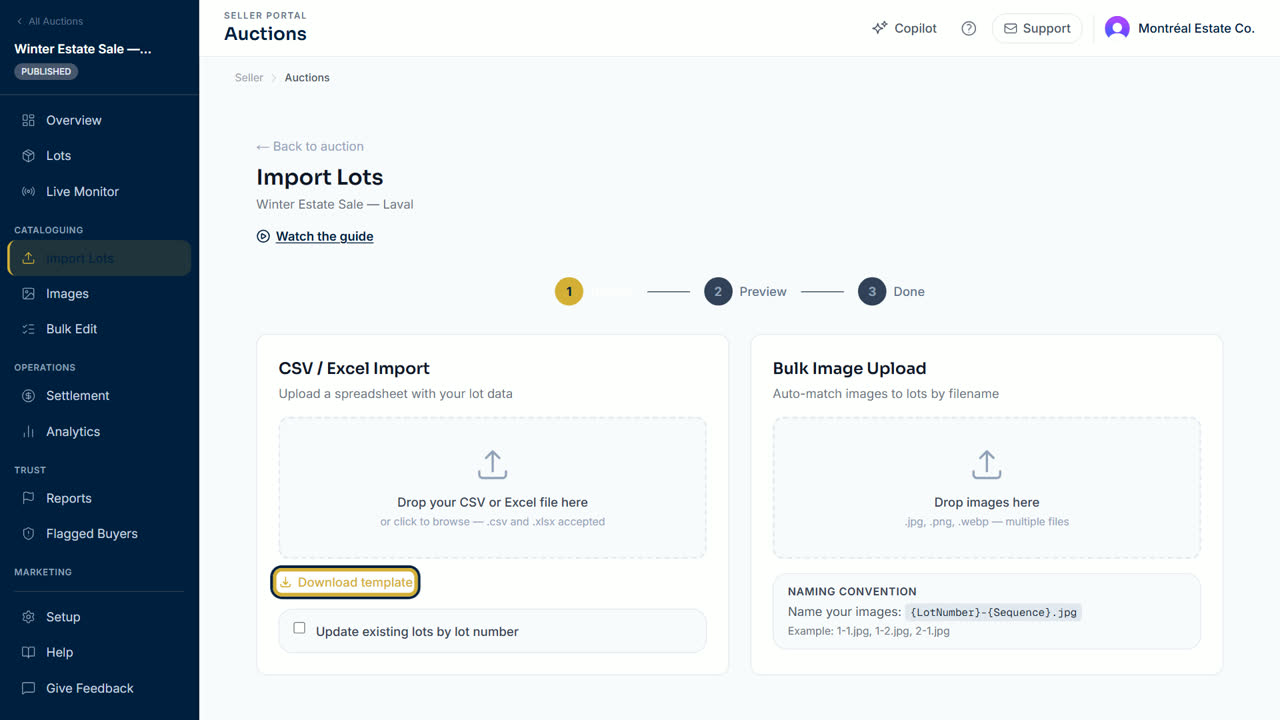
- Drop your file on Drop your CSV or Excel file here, or click it to browse.
- To replace lots you imported before, tick Update existing lots by lot number. Otherwise leave it empty.
- Check the preview. Each row shows Ready or Error. Point at Error to see the reason, or tick Show errors only.
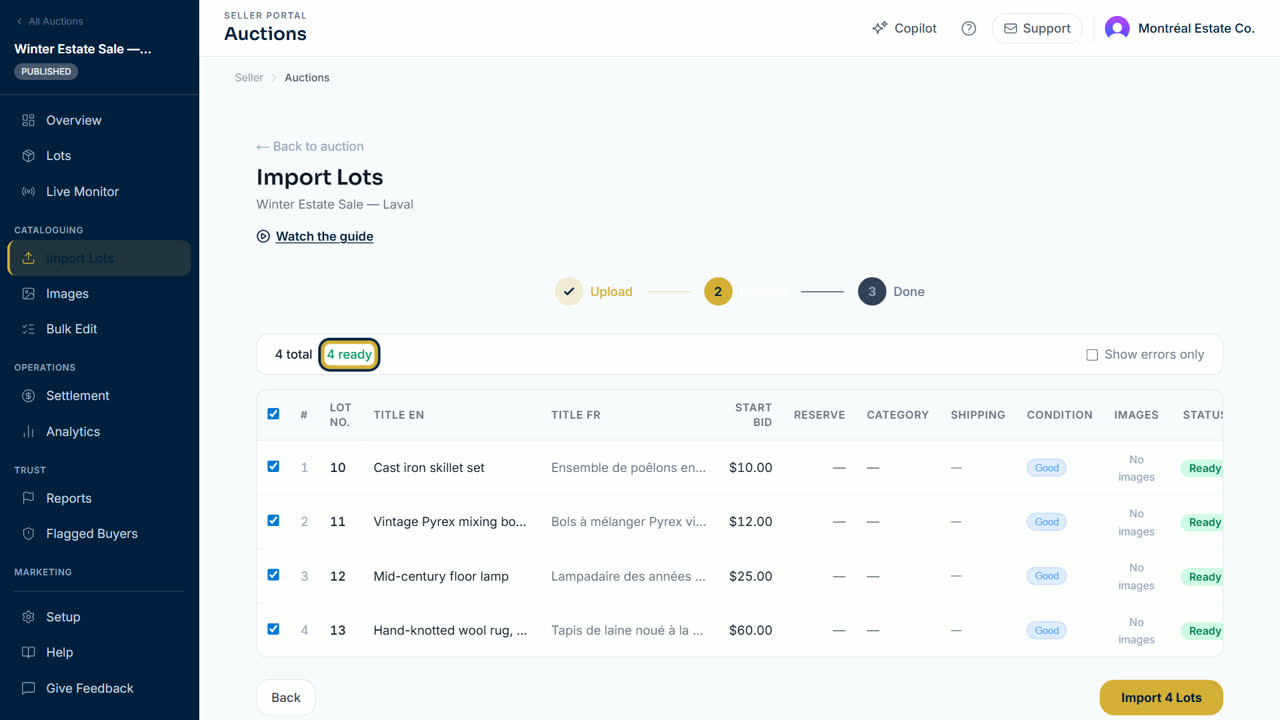
- Select Import with the number of lots. The page shows how many lots were created or updated.
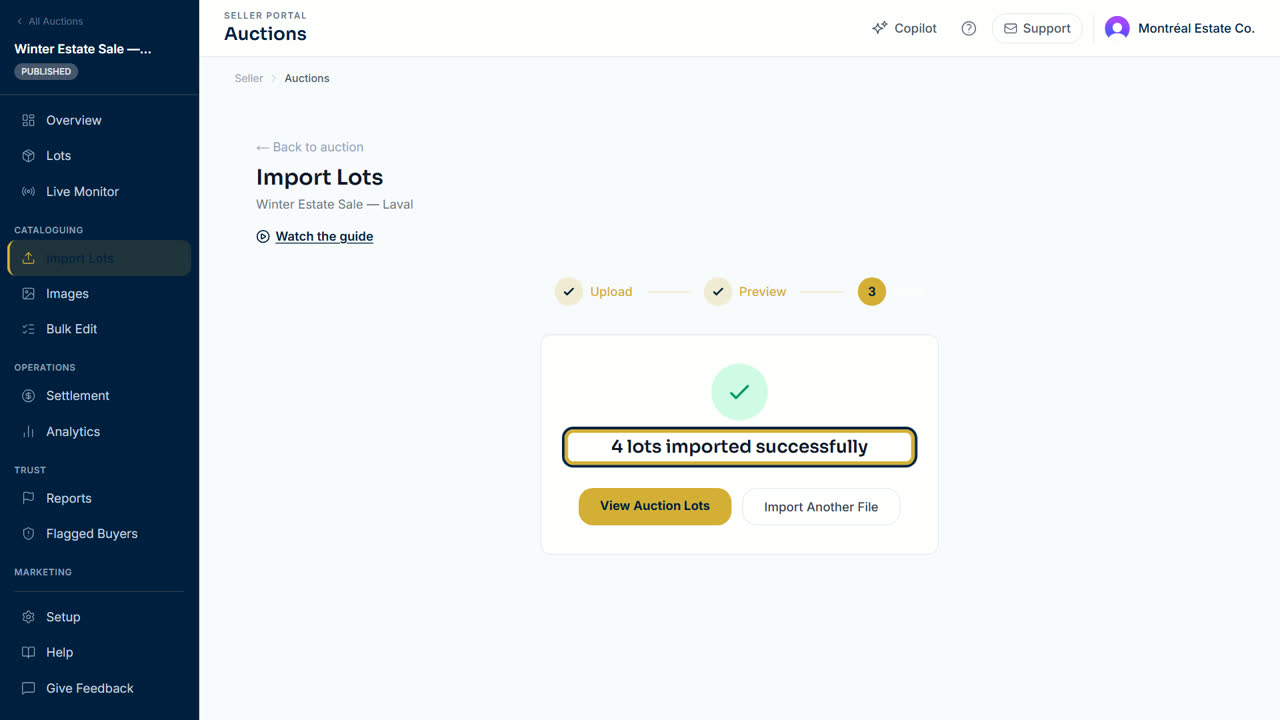
- Select View Auction Lots to check them.
Add the photos
- Name each photo with its lot number and a sequence:
12-1.jpg,12-2.jpg,13-1.jpg. A file named12.jpgbecomes the first photo of lot 12. - In the auction menu, select Images.
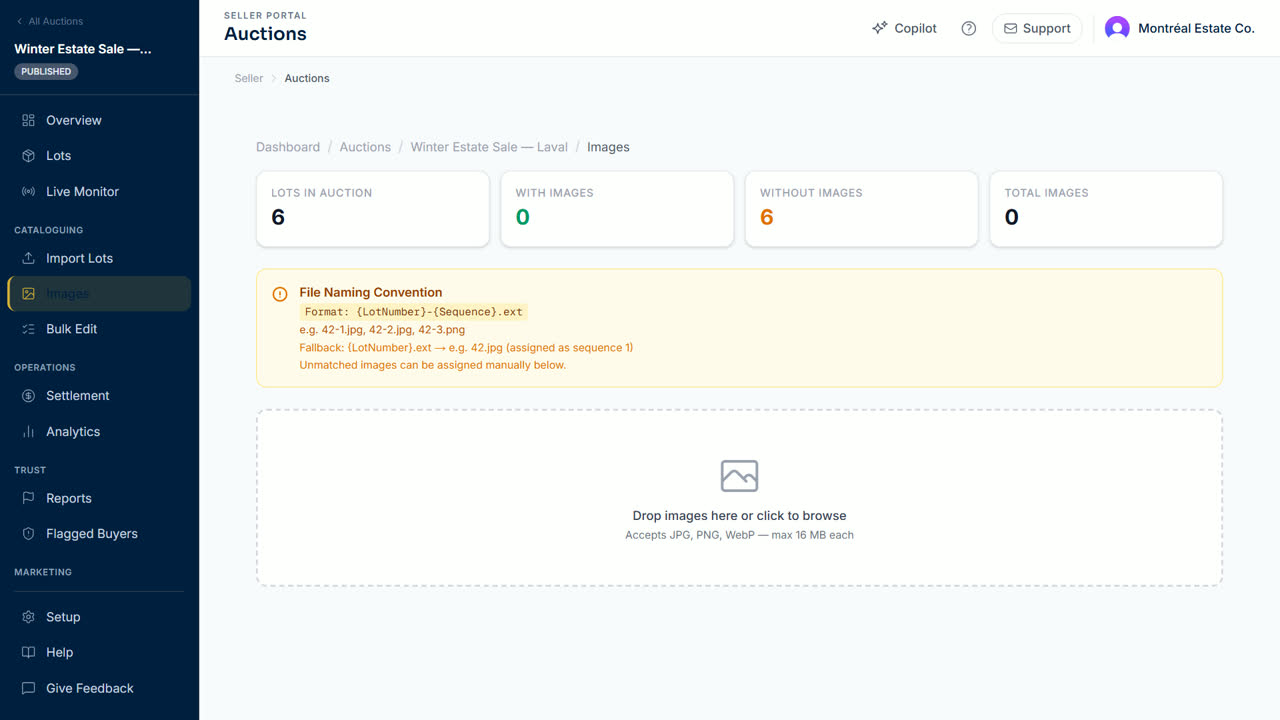
- Drop the photos on the upload area, or click it to browse. JPG, PNG and WebP are accepted, up to 16 MB each.
- Photos whose number matches a lot are added to that lot. Check the counts at the top of the page.
Tip: add photos on the Images page after the lots exist. A photo for a lot number that is not in the auction is not matched.
Updated October 8, 2026