A new auction is saved as a draft. Nobody sees it until you publish it.
Before you start
- In Settings, add at least one pickup location with its address. Auction times follow that location's time zone.
- Fill in your public phone number, public email and response time. An auction cannot be published without them and a complete pickup address.
Build the auction
- In the seller portal, select + Create Auction at the top of the menu.
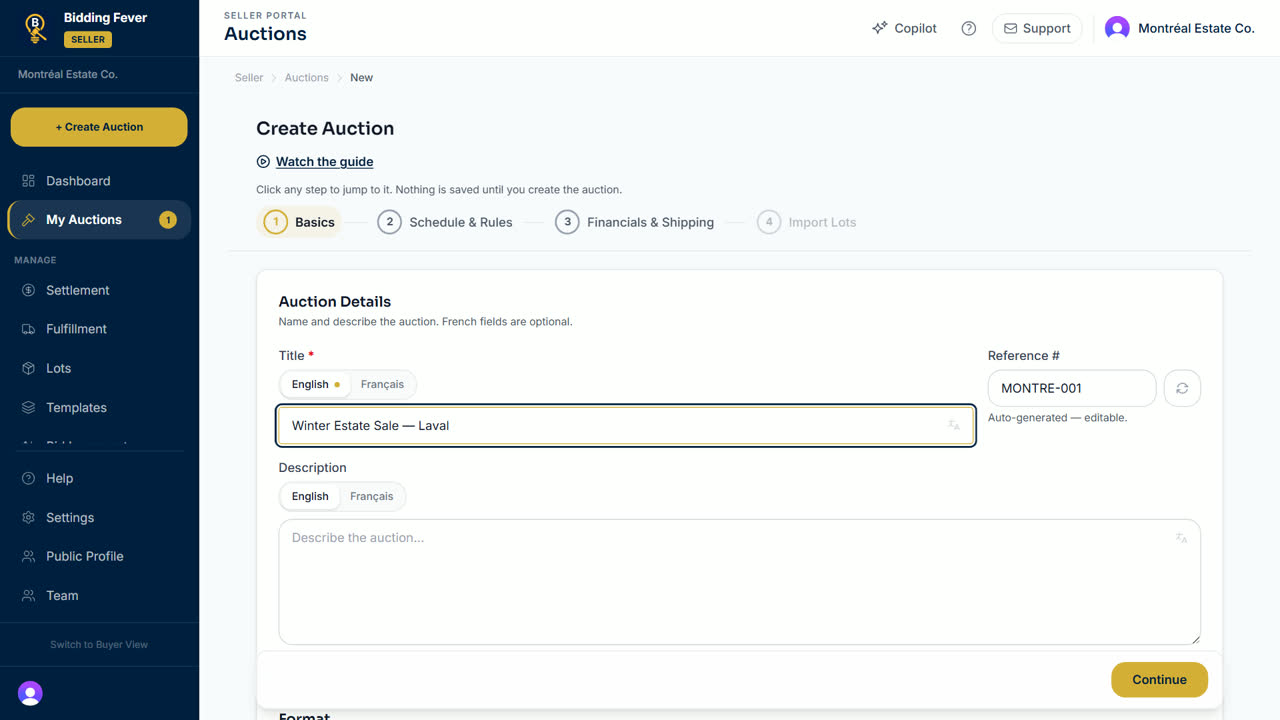
- Basics: enter the title. Use the English and Français tabs for both languages; the translate button can fill one from the other. Add a description, the auction type and a category, and choose the pickup location.
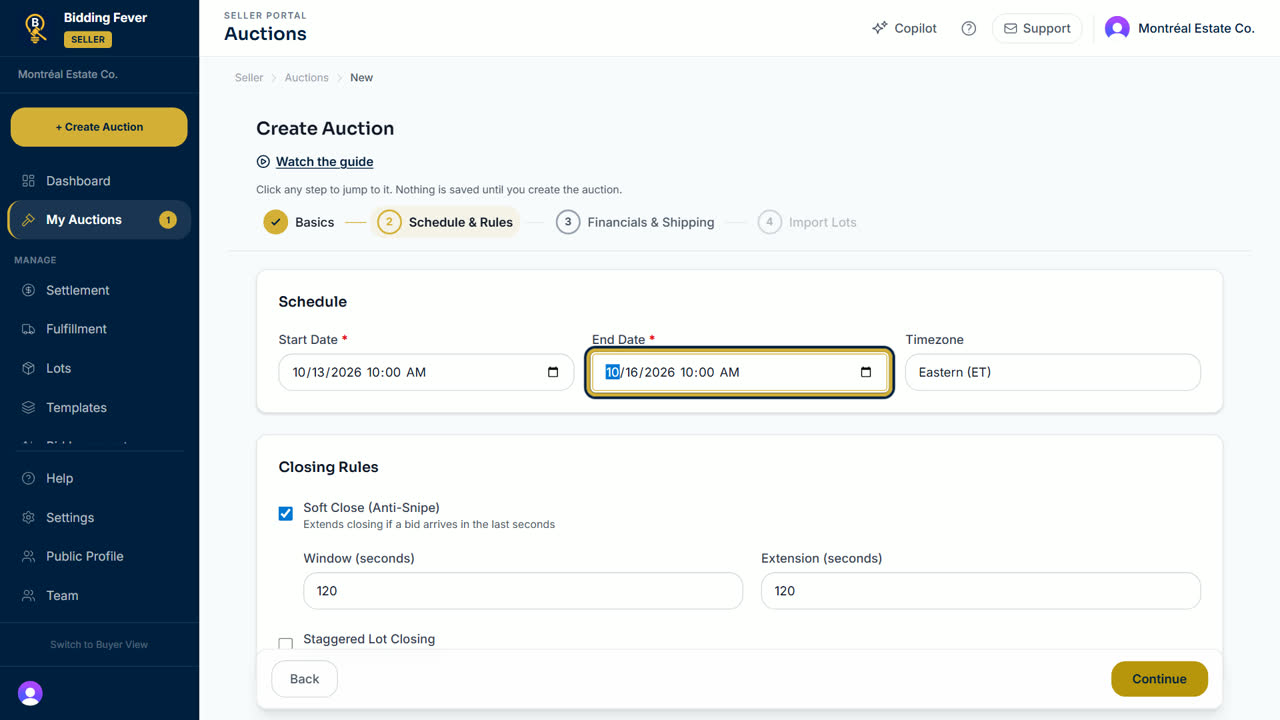
- Schedule & Rules: enter the start and end dates. Soft close is on by default: a bid in the last minutes extends the lot. You can also close lots one after another.
- Financials & Shipping: set the buyer premium, bid increments, payment methods, shipping options and your terms and conditions.
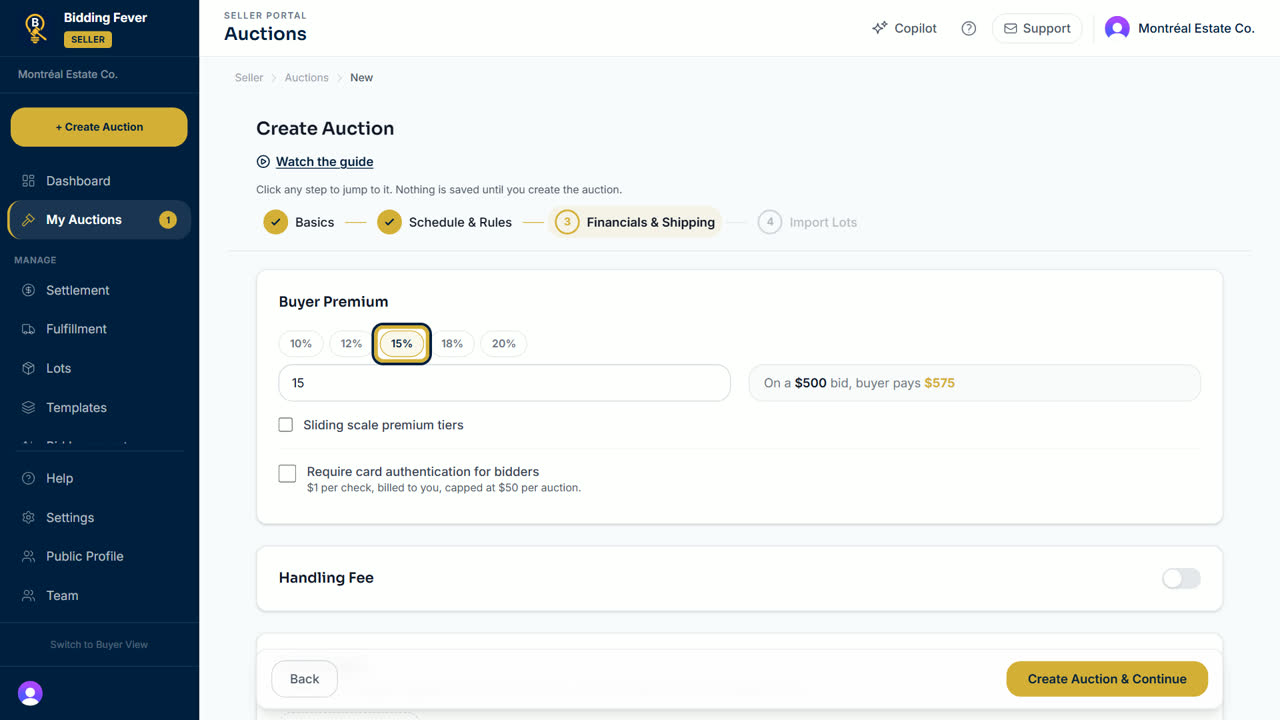
- Select Create Auction & Continue. The auction is created as a draft.
- Import Lots: upload a CSV file now, or select Skip and add lots later. See Import lots from a CSV file.
Publish it
- Open the auction from My Auctions.
- Select Preview Public Page to check what bidders will see.
- Select Publish. The message Published! confirms it.
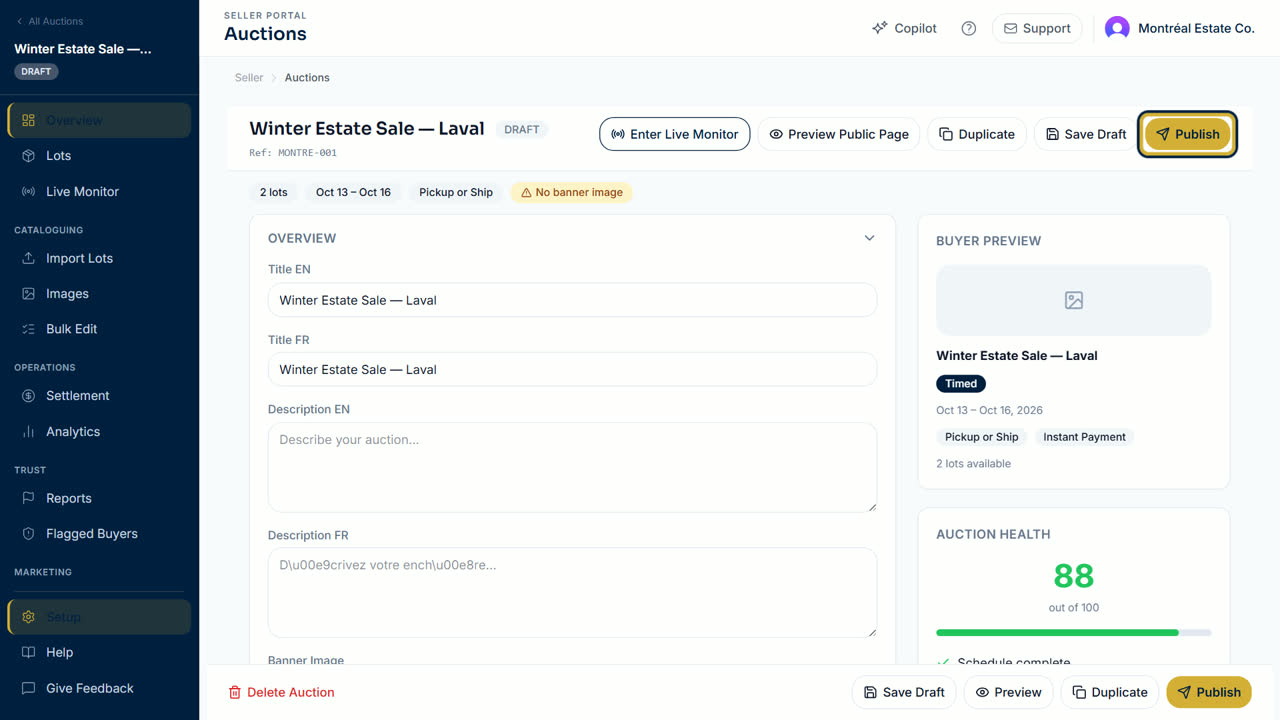
- If publishing is refused, the message says why: the auction needs at least one lot, a start date in the future, and a complete seller profile. Fix it and select Publish again.
Tip: Save Draft keeps your changes without publishing. Duplicate copies an auction to start the next one faster.
Updated October 8, 2026