Each person who uses your seller portal takes one seat. Solo has one seat, Team has up to 5, and Unlimited has no limit. Active members and invitations that have not expired both count.
Roles
- Admin: manages the auction house with the owner
- Auction Manager: builds and runs auctions
- Settlement Clerk: handles invoices and payments
- Viewer: can look, cannot change anything
Invite someone
- In the seller portal, select Team in the menu.
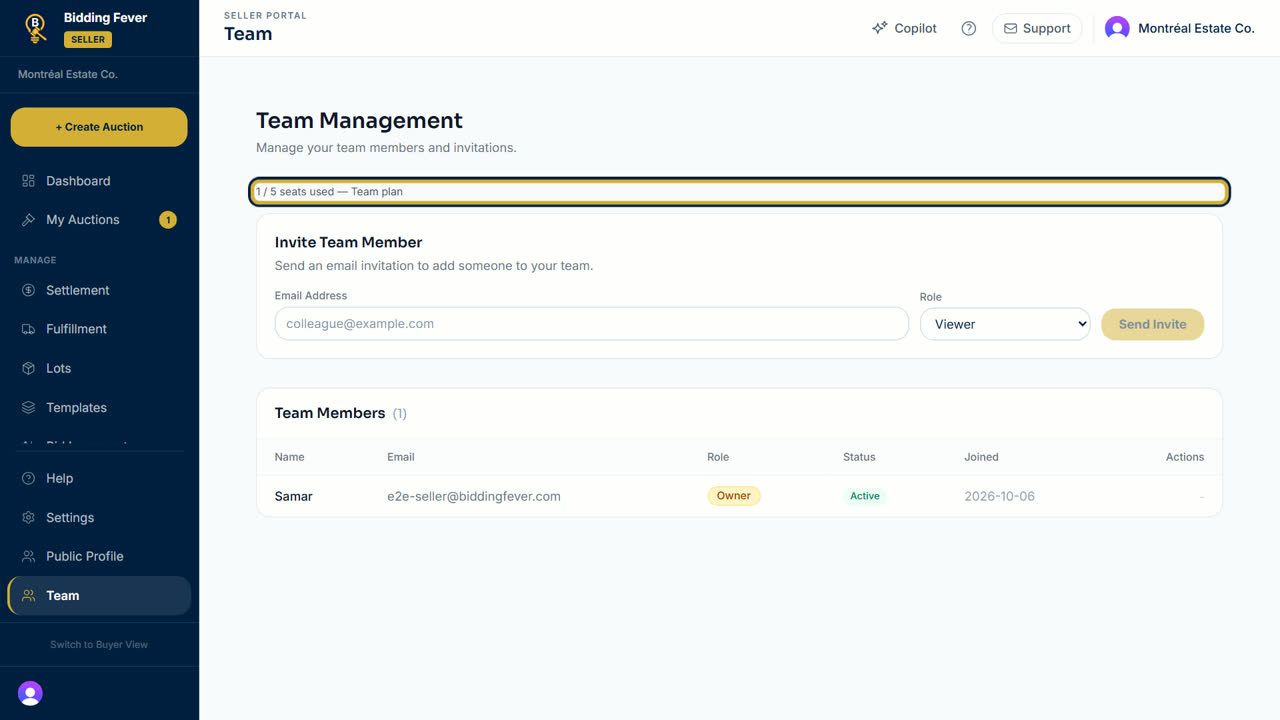
- Check the seat line at the top, for example 2 / 5 seats used — Team plan.
- Under Invite Team Member, enter the person's email, pick a role, and select Send Invite.
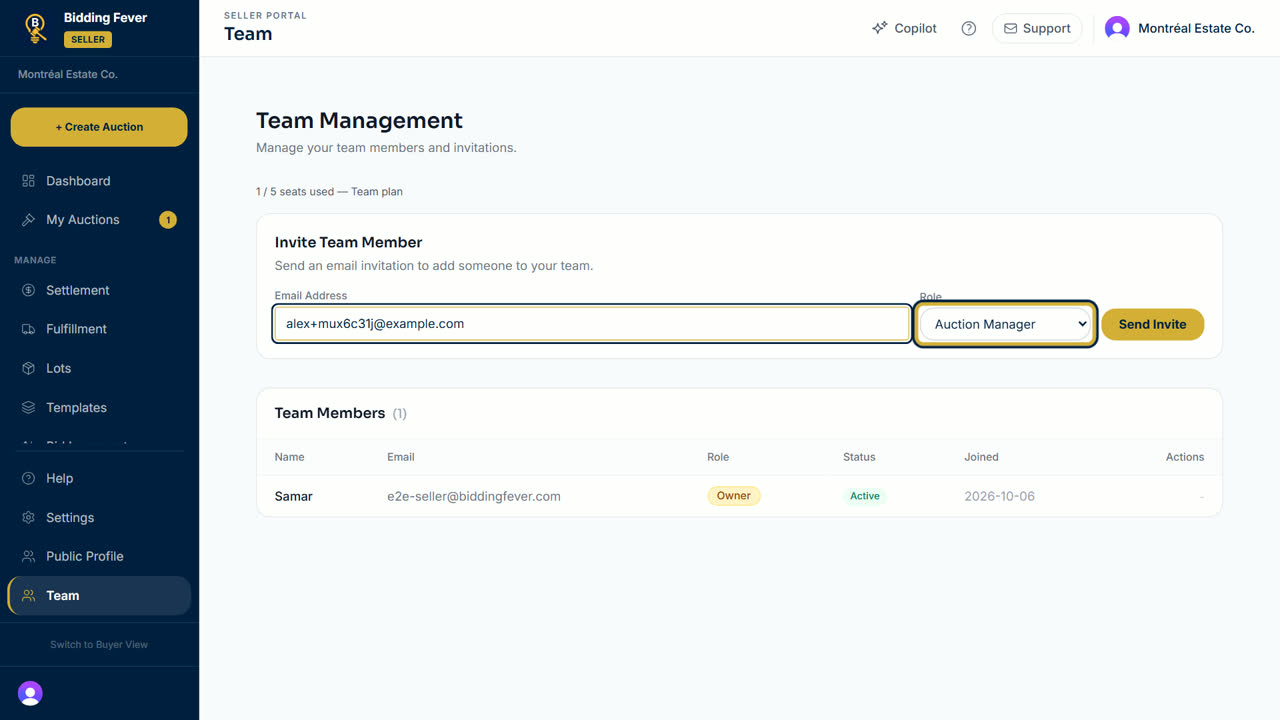
- The invitation appears under Pending Invitations. You can Resend or Cancel it there. It expires after 7 days.
- The person opens the email, selects Accept Invitation, and signs in or creates an account with the invited email.
Manage your team
- In Team Members, use Suspend, Reactivate or Remove on a person. You confirm each action.
- When every seat is used, the invite form is replaced by All seats are in use and a Change plan link.
- The Solo plan has no team seats. To add people, move to Team or Unlimited.
Moving to a smaller plan
- In Settings, under Your plan, select the smaller plan.
- If your team does not fit, select Choose who stays. The owner always stays.
- Tick the members who stay and the invitations to cancel, then select Confirm and change plan. Only the owner can confirm.
Updated October 8, 2026