Once a buyer has paid, you ship the order or prepare it for pickup, and the buyer sees the result on their invoice.
Ship an order
- Open the auction from My Auctions and select Settlement in its menu. The Fulfillment section lists each invoice with its payment and fulfillment status.
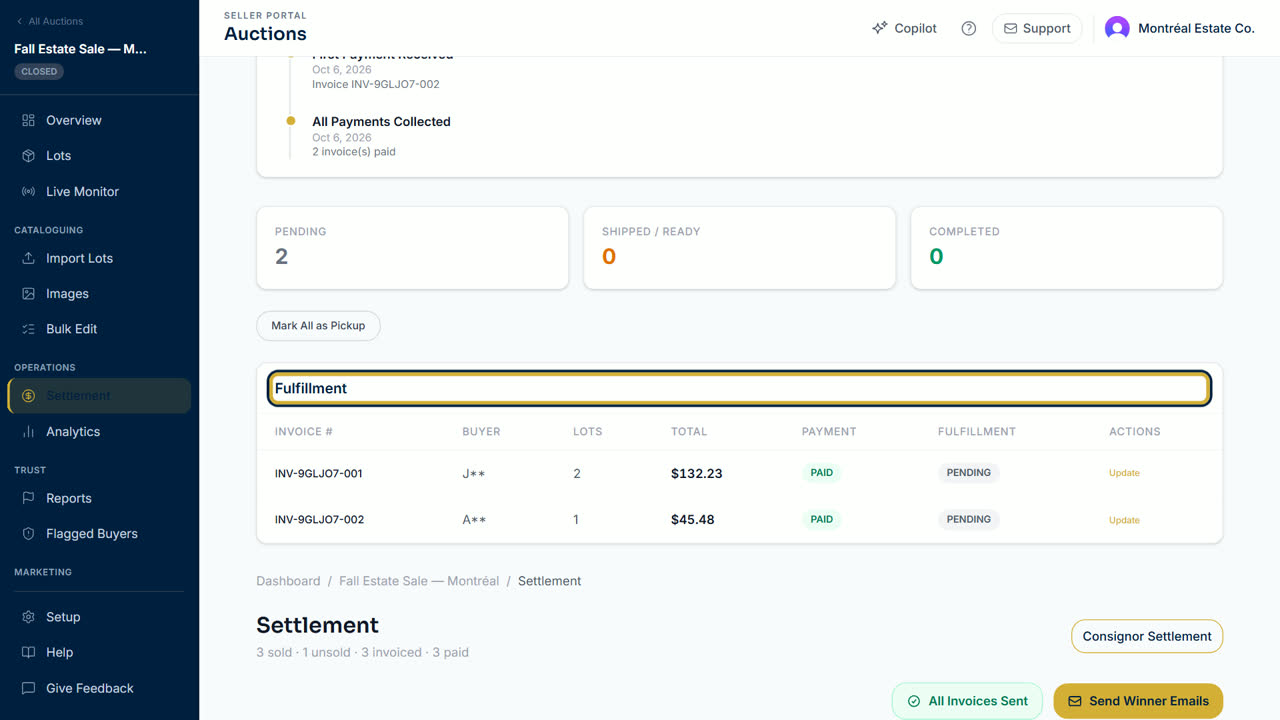
- Select Update on the invoice.
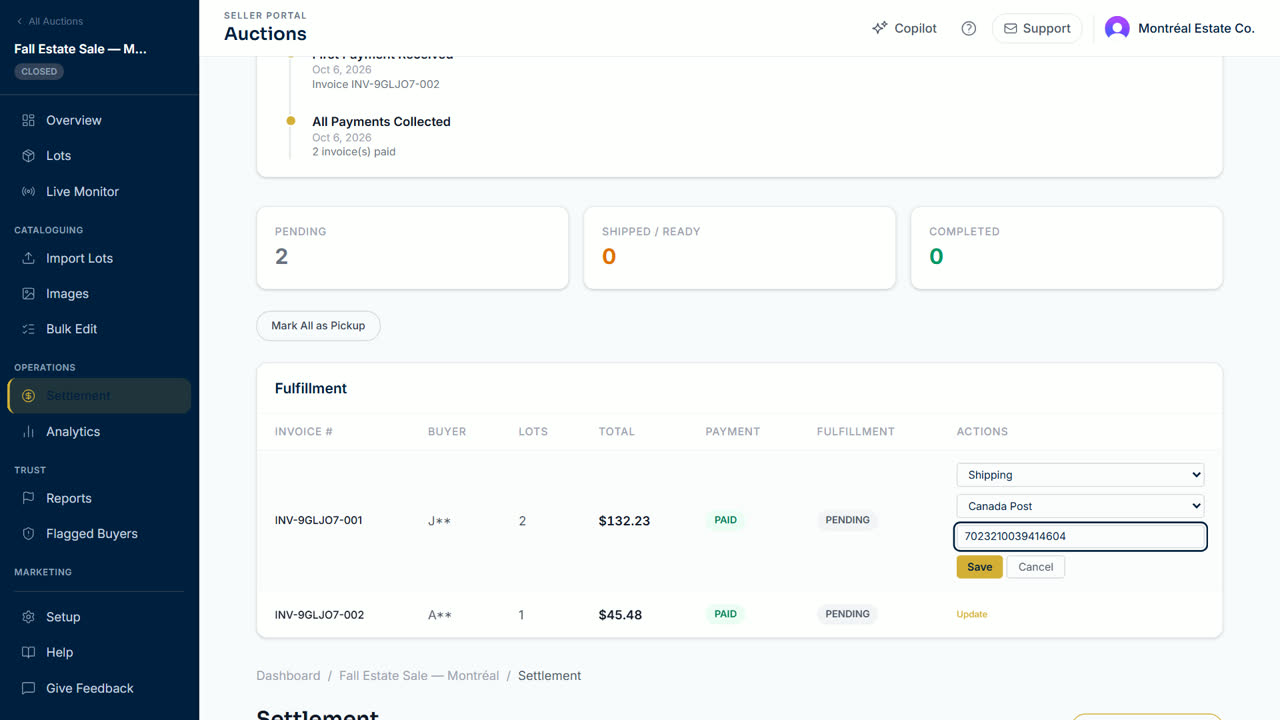
- Choose Shipping, select the carrier, enter the tracking number, then select Save.
- The row's fulfillment status changes to SHIPPED. The buyer sees the carrier and the tracking number on their invoice, with a link to follow the parcel.
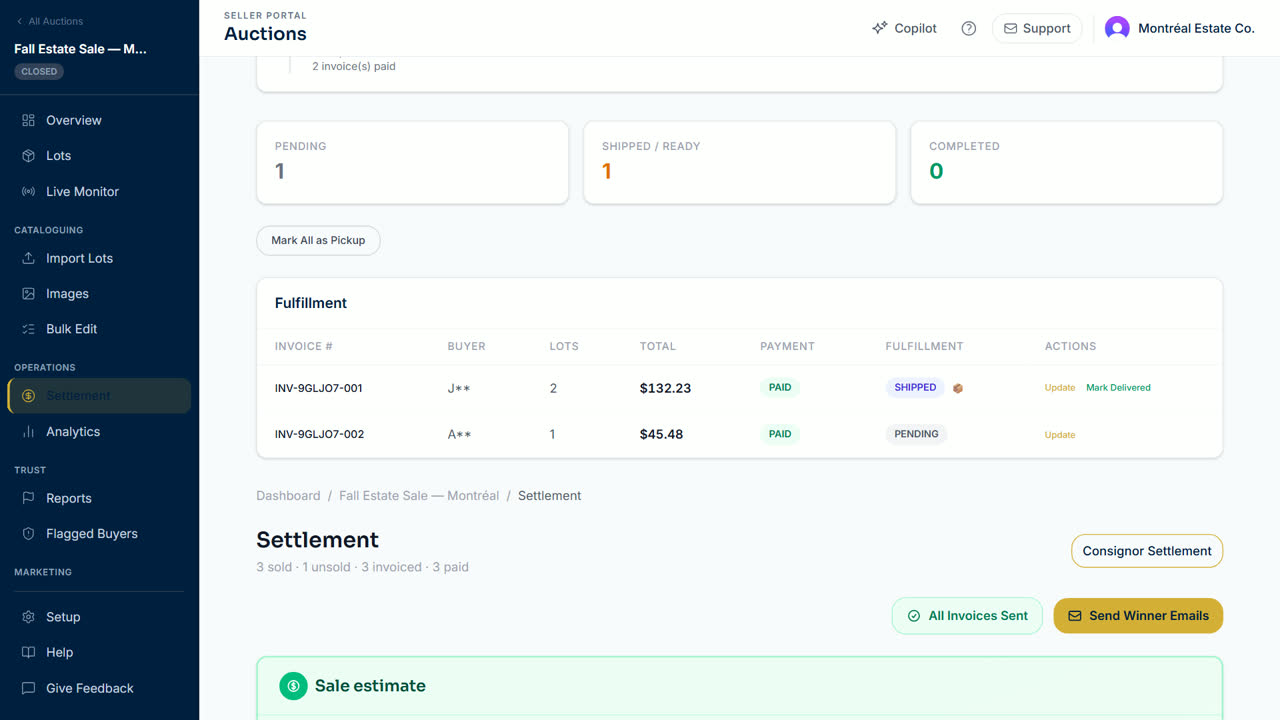
- When the parcel has arrived, select Mark Delivered.
Pickup instead
- Select Update, choose Pickup, enter where the buyer collects the items, and select Save.
- When the buyer has collected them, select Mark Picked Up.
All auctions at once
- Fulfillment in the seller menu shows paid lots from all your auctions, with tabs All, Pending, Shipped, Ready and Picked Up.
- For a lot listed there, select Ship, choose the carrier, enter the tracking number and the shipped date, and select Confirm Shipped. The buyer gets an email with the tracking link.
- Paid invoices listed under Invoice-level fulfillment are handled on their auction's settlement page, as above.
Tracking updates
- When your shipping partner is connected to Bidding Fever, its updates arrive on their own: label created, in transit, out for delivery, delivered.
- If a delivery attempt fails or the parcel comes back to you, both you and the buyer are told.
Tip: check the tracking number before you save: it is what the buyer uses to follow the parcel.
Updated October 8, 2026