Buyers pay by card through Stripe, and the money goes to the bank account you connect. Bidding Fever keeps its 2% commission on the hammer price. Until your payouts are set up, buyers cannot pay you by card.
Set up payouts
- Open Settings in the seller menu and find Payment Settings.
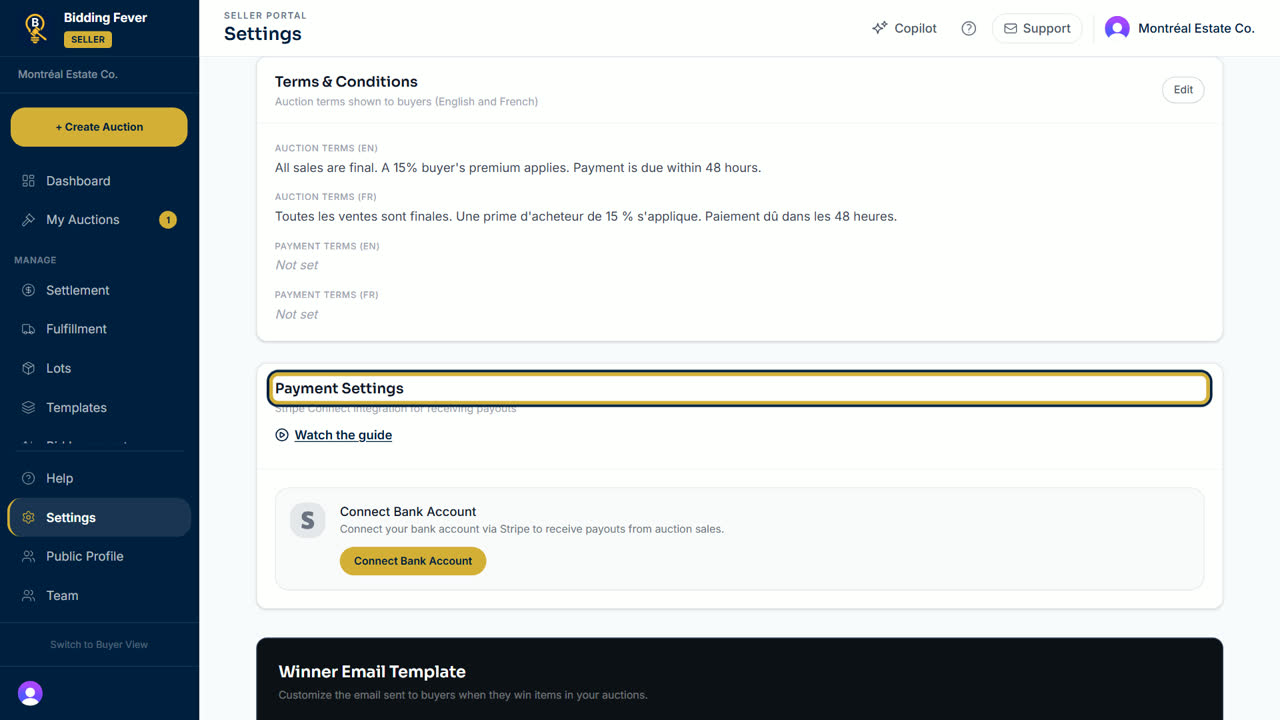
- Select Connect Bank Account. Stripe opens and asks for your business and bank details.
- When you finish, you come back to Settings. The card shows Payouts Active once Stripe has verified you.
- If you stopped before the end, the card shows Complete Stripe Setup. Select it to continue where you left off.
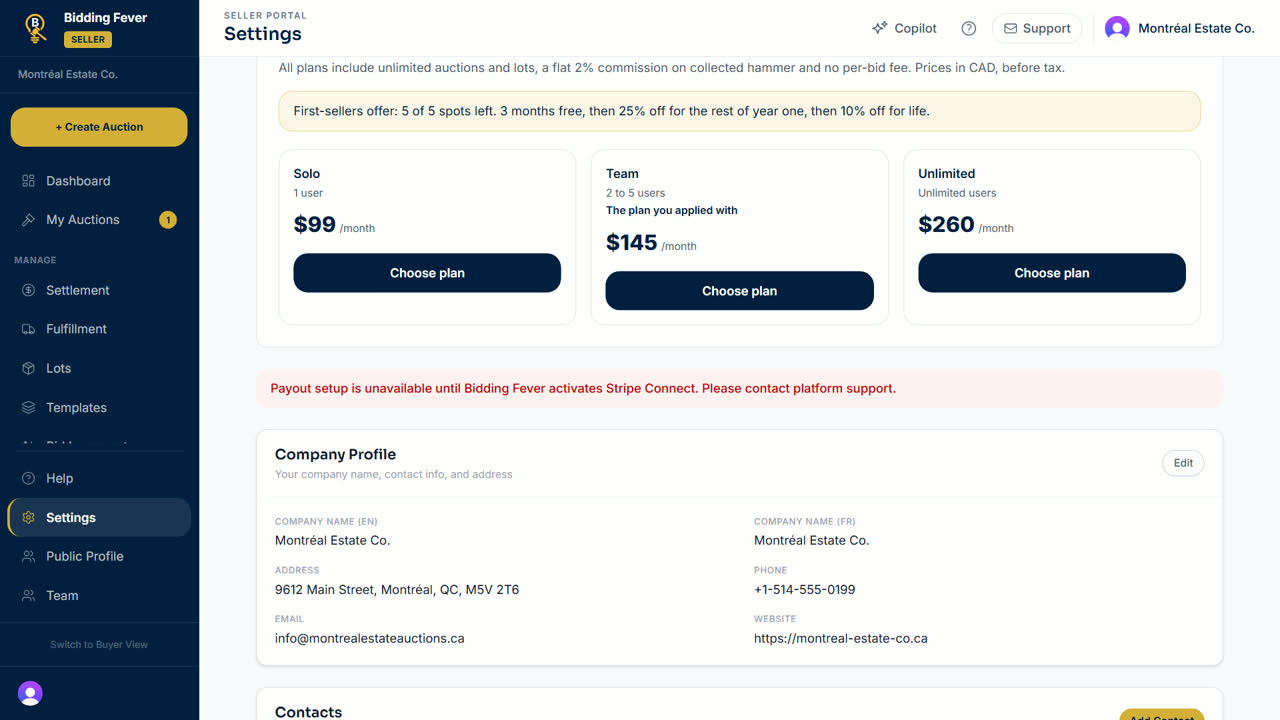
- If you see Payout setup is unavailable or Unable to open payout setup, the setup could not start. Contact us; nothing was charged.
Invoices after an auction
- When an auction closes, one invoice per buyer is created. Buyers have 72 hours to pay. If an auction still shows Invoicing, select Generate on its row.
- Open Settlement in the seller menu. Each closed auction shows its sales, fees, tax and status.
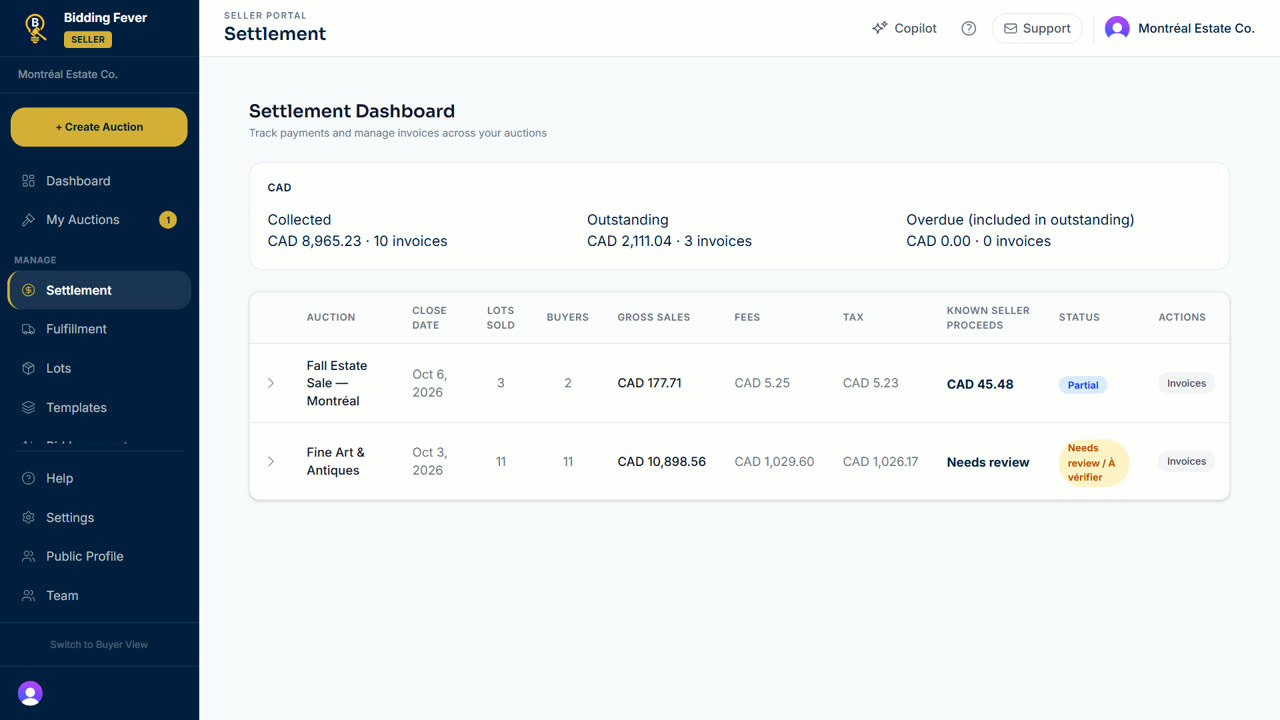
- Select Invoices on an auction to see each buyer's invoice and its status.
- Select Remind to email a buyer again, or Remind All for every unpaid invoice of that auction.
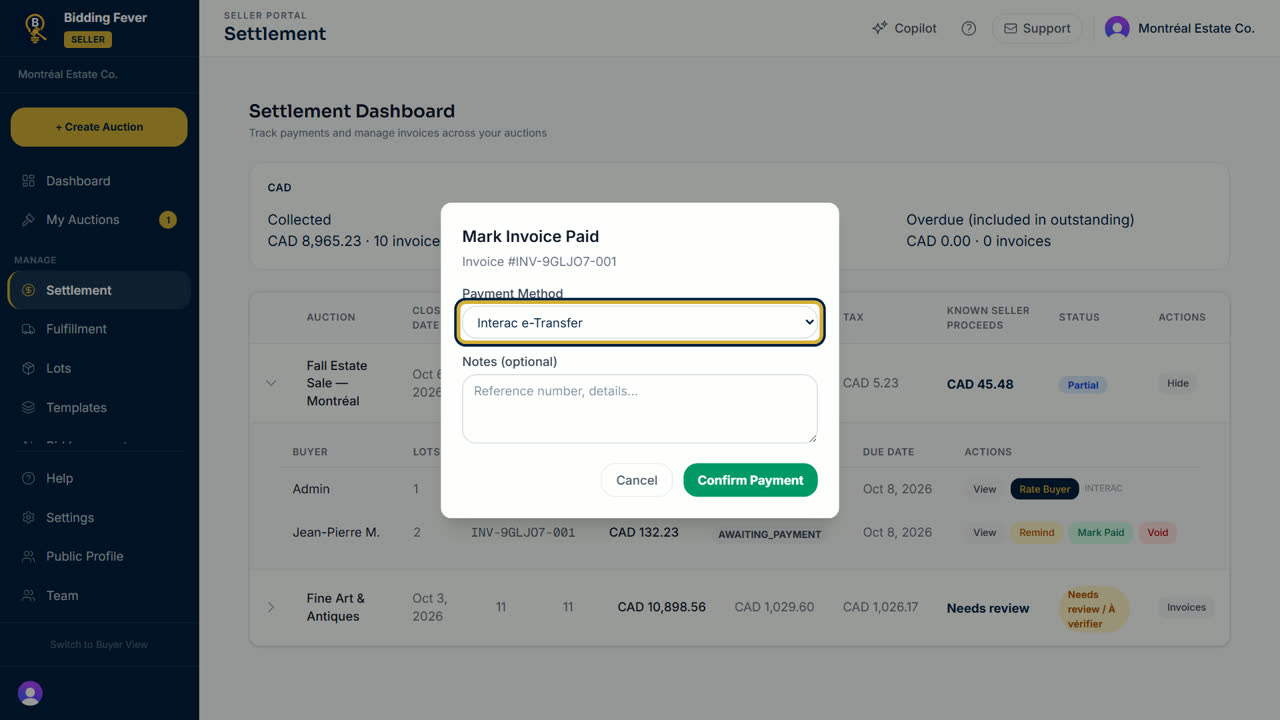
- If a buyer paid you another way, select Mark Paid, choose Interac e-Transfer, Cash, Cheque or Other, and select Confirm Payment.
- To cancel an invoice, select Void and give a reason.
Tip: the Payout reconciliation report in Reports lists every card payment that reached you. See Reports and accounting.
Updated October 8, 2026